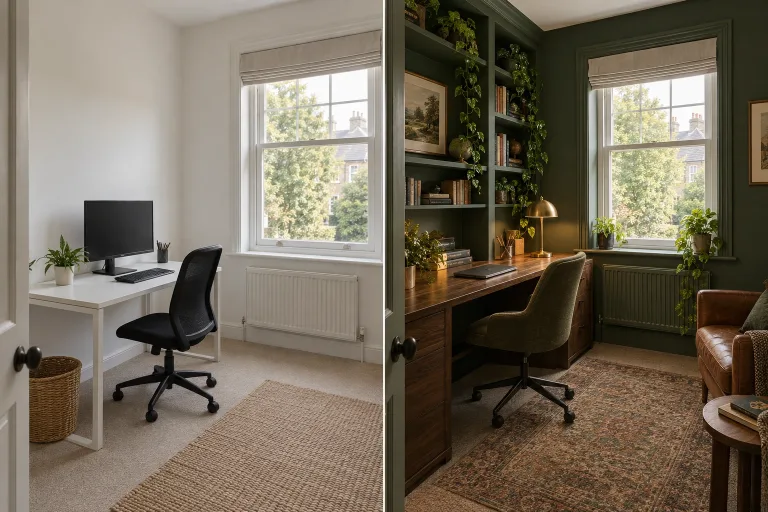
How to use AI Room Design
Upload a wide photo of the room
Add the room photo under "Your image" (JPG, PNG or WebP, up to 10 MB). Shoot from a corner or the doorway in daylight, with the camera held level. Walls, windows and floor should be clearly visible. The redesign builds on what the photo shows.
Describe the room or pick a preset
In "Describe the room you want", name the room, style, materials and light. For example: "home office, walnut desk, sage green walls, warm evening light". A "Style preset" chip writes a full brief instead and replaces your text. Add "keep the walls, windows and layout", as the presets do. For Wall color, type the color at the end of the brief, after "New wall color:".
Match the format to your photo
Under "Format", "Square 1:1" is selected by default. For a horizontal room shot, choose "Landscape 3:2". For a vertical one, choose "Portrait 2:3". That way the room does not have to be squeezed into a square frame.
Check the architecture, then refine
Press "Redesign room" and compare walls, windows and proportions with your photo. If something moved, state what must stay; to start from an empty room, ask to remove the existing furniture. Expect a design visualization, not a photo-exact render.
What a real job costs here
The cheapest model on this page charges 14 credits and the most expensive 19 credits. At the best pack rate that is about $0.1490 up to $0.2022.
| Pack | Credits | Runs with GPT Image 2 (medium) |
|---|---|---|
| $9 | 750 | 53 |
| $19 | 1,650 | 117 |
| $39 | 3,500 | 250 |
| $79 | 7,300 | 521 |
| $149 | 14,000 | 1,000 |
Choosing between the models on this page
GPT Image 2 (medium): Posters, menus, interfaces and any image with readable text. Typography that stays readable at small sizes. Watch out for: not the most photoreal option.
GPT Image 2.5: Edits and product shots where the subject must stay recognizable. Sharper detail and more natural light. Watch out for: small, dense text can still break.
Name the room yourself
Five presets are styles: Scandinavian, Japandi, Industrial loft, Cozy boho and Modern luxury. They do not name a room, so say whether it is a bedroom, living room or home office. A bedroom and an office need different furniture, lighting and flow. Kitchen and Bathroom are the only presets written for one room.
What stays and what moves
Every preset asks to keep the walls, windows and proportions. In the style presets and in Kitchen and Bathroom, furniture, materials, color and lighting are open. Wall color changes the walls only. Pick the Format that matches your photo, because a landscape room forced into Square 1:1 cannot keep its proportions.
One room, several directions
Generate four versions before you commit to anything physical. That is cheaper than one wrong sofa.
Kitchen and bathroom redesigns
The Kitchen and Bathroom presets keep what is costly to move. In a kitchen, that is the sink, cooktop and appliances. In a bathroom, it is the toilet, basin, shower or bath. Cabinets, countertops, tiles, fittings and lights are what change. Check those positions in the result. Treat it as a design idea, not a fitting plan, because nothing is measured.
Try a wall color before you buy paint
Paint is the cheapest makeover and the hardest to picture from a small swatch. Click Wall color and type the color after "New wall color:", such as "dusty sage green". Everything else is asked to stay as photographed. The model still redraws the image, so compare it with your photo. A paint name or code is read as a description, not matched exactly. Try a sample pot on the real wall before you buy.
Frequently asked questions
How is this different from interior design?
Both redesign a room photo. This page has five style presets, the Kitchen and Bathroom presets and a Wall color repaint. For any other room, you name the room type in the text.
Can it empty the room first?
Yes. Ask to remove existing furniture and keep the architecture.
Will it respect my window light?
It uses the light in your photo as a starting point. To change it, use the relight tool afterwards.
Can I use it as a wall paint visualizer?
Yes, for the overall look. Wall color repaints the walls in the color you type. It asks to keep the rest of the room as photographed. It cannot match a paint brand's color exactly. The shade on screen depends on the light in your photo.
Can it design a kitchen or bathroom?
Yes. The Kitchen and Bathroom presets restyle cabinets, countertops, tiles and fittings. They keep the sink, appliances, toilet, basin and shower where they are. The result is an idea to take to an installer. It has no measurements and does not check that units fit.
What does GPT Image 2 (medium) cost here?
14 credits per image. The exact total appears above the button before you generate.
