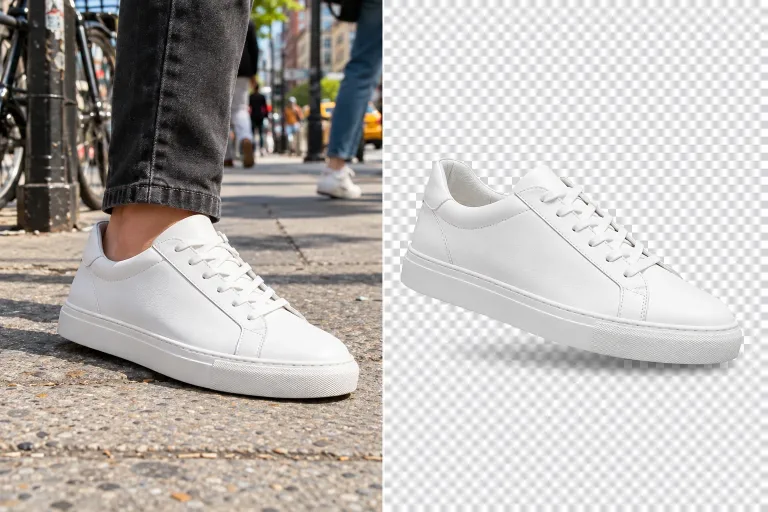
How to use Background Remover
Upload a photo with clear edges
Under "Your image", add a sharp photo where the subject stands out from the background in color and brightness. JPG, PNG or WebP up to 10 MB. Hair, fur, glass and motion blur are the hardest edges. Pick a shot with as little of them as you can.
Remove the background
There is nothing to describe or set: the engine works from the image alone. Press "Remove background" and the subject comes back on a transparent background. It only removes the background and leaves the subject as it is. Color or lighting fixes are a separate step.
Zoom in on the edges
Check hair, fingers, the gaps between arms and body, and anything see-through. If parts are missing or the outline is rough, use a photo shot against a plainer, contrasting background. That fixes more than running the same file again.
What a real job costs here
Runs on this page cost 3 credits. At the best pack rate that is about $0.0319.
| Pack | Credits | Runs with Remove Background |
|---|---|---|
| $9 | 750 | 250 |
| $19 | 1,650 | 550 |
| $39 | 3,500 | 1,166 |
| $79 | 7,300 | 2,433 |
| $149 | 14,000 | 4,666 |
What this model is good at and where it stops
Remove Background: Cutting out products and people onto a transparent background. Transparent background in one step. Watch out for: removes the background only; the subject stays as it is.
What Remove Background is good at
Cutting out products and people onto a transparent background in one step. One image goes in, and the same image comes back without its background.
The limit worth knowing
It removes the background only. The subject stays exactly as it is, so a color or lighting fix is a separate step.
When to reach for it
Product photos for a shop, profile pictures, stickers and any picture that has to sit on a new background.
Where cut-outs break, and what to do about it
Hair, fur, glass and motion blur are the four hard cases. They fail for the same reason: the edge is a gradient, not a line. The model has to decide how much of a semi-transparent pixel belongs to the subject. Shooting against a contrasting background solves more than any second pass. It moves the decision from guesswork to arithmetic.
Product photos for a shop
A box, a shoe or a bag on a plain background has a hard edge and cuts out cleanly. There are two things to watch. First, the shadow goes with the background. Add a soft one back in your editor, or the item looks pasted on. Second, clear glass or plastic packaging lets the background show through, so shoot it against a contrasting color.
Frequently asked questions
Can I tell it what to keep, like a shadow or a second object?
No. The engine reads only the image and removes the whole background on its own. This page has one model, Remove Background, so there is nothing to switch.
Can it put the product on a new background?
Not on this page: you get the subject on a transparent background. For a white marketplace shot, place the PNG on white in your editor. You can also use the White background preset in AI Product Photography. For a new scene, use AI Product Photography or AI Image Editor. Both redraw the whole image, so compare the label with your original.
How do I change the background behind a car?
Remove it here first, from a photo with the whole car in frame. Then upload the cut-out to AI Product Photography and pick the Car preset for a showroom. Or describe a road or street in AI Image Editor. The car is redrawn in both, so check the wheels, badges and paint against the real car.
What happens if a run fails?
The credits are released automatically. You only pay for results that finish.
What does Remove Background cost here?
3 credits per image. The exact total appears above the button before you generate.
