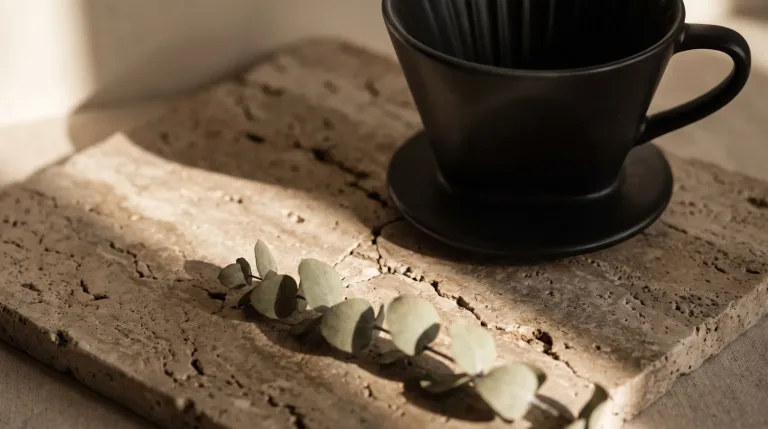
How to use AI Product Photography
Upload a clean product shot
Under Your image (optional), add a sharp photo of the product in even light, on a plain background. The label should face the camera. A blurry photo gives a blurry product in the result. JPG, PNG or WebP up to 10 MB.
Describe the scene, not the product
In "Describe the scene", write the surface, background and light. For example: "on a linen cloth by a window, soft morning light, a sprig of eucalyptus beside it". If you did not upload a photo, describe the product as well.
Use a preset and pick the format
The chips under Style preset load ready scenes. Everyday looks range from white marble and a cafe table to a dark studio or a flat lay. Food, Jewelry, Clothing, Car and White background cover those jobs. A chip replaces the text in the box. Under Format, choose Square 1:1, Landscape 3:2 or Portrait 2:3 to match where the photo will be used.
Check the label and shape
Press "Generate photo" and compare the product with your upload: shape, color and every letter on the label. If they drift, cut product details from the text so it describes only the scene. Also try a cleaner photo on a plain background.
What a real job costs here
The cheapest model on this page charges 14 credits and the most expensive 19 credits. At the best pack rate that is about $0.1490 up to $0.2022.
| Pack | Credits | Runs with GPT Image 2 (medium) |
|---|---|---|
| $9 | 750 | 53 |
| $19 | 1,650 | 117 |
| $39 | 3,500 | 250 |
| $79 | 7,300 | 521 |
| $149 | 14,000 | 1,000 |
Choosing between the models on this page
GPT Image 2 (medium): Posters, menus, interfaces and any image with readable text. Typography that stays readable at small sizes. Watch out for: not the most photoreal option.
GPT Image 2.5: Edits and product shots where the subject must stay recognizable. Sharper detail and more natural light. Watch out for: small, dense text can still break.
A shoot costs more than the product
A small catalog eats a day of studio time. This replaces the set, not the product. The model redraws the whole image, though. Compare the shape, color and label with your photo before you publish.
Eleven scenes to start from
Marble, a lifestyle table, a floating pastel backdrop, nature, a dark studio and a flat lay suit most products. Food, Jewelry, Clothing and Car are set up for those items. White background gives a plain marketplace shot: pure white, a soft shadow, no props.
Shoot the input well
Even light, sharp focus, plain background. The model rebuilds the scene, not the product, so a soft input stays soft.
Food, jewelry and clothing
Food sells on texture, so the Food preset uses soft side light, a napkin and a few loose ingredients. It keeps the plate and portion you shot. Jewelry is mostly reflection. The Jewelry preset goes in close on dark stone so metal and stones catch clean highlights. Count the stones and read any engraving against the real piece. Clothing turns a garment into a ghost-mannequin shot on gray. That shape is drawn by the AI, so it shows the design, not how the garment fits.
Car photos start from your car
The Car preset needs a photo of the car. It puts the car from your upload in a bright showroom. Without an upload, you get a car that is not yours. For an outdoor shot, swap the showroom part of the text for a place. For example: "on an empty coastal road at sunset". Shoot from the angle you want in the final picture, because sides the camera did not see are invented. Compare the wheels, badges and paint with the real car before you list it.
Frequently asked questions
Will my product change?
It can drift, because the whole image is redrawn. Describe the scene, not the item. If the shape changes, cut the background from your photo first and retry.
Can I use it on Amazon?
Pick the White background preset: pure white, a soft shadow, no props. The white is drawn by the model. Check the result against each marketplace's current image rules before you upload.
What about a whole catalog?
Run items one at a time with the same preset. The set stays visually consistent.
Can I just change the background of a product photo I already have?
Yes. Upload it, pick a preset or describe a new setting, and the product is staged in that scene. It is not a cut-and-paste: the whole image is redrawn, so the product can shift slightly. If you need the exact pixels of the product, cut it out with Background Remover and place it yourself.
Can I make a product photo without uploading one?
Yes, describe the product as well as the scene and the model draws both. That works for mock-ups and ideas. The item will not be your real product, though, so do not use it on a listing.
What does GPT Image 2 (medium) cost here?
14 credits per image. The exact total appears above the button before you generate.
